
In my first marketing job, I'd look at a campaign, feel it wasn't working, and have no way to prove it.
Maybe you know that feeling. This module is where it starts to change.
The difference between good and great marketers? Great ones tell stories with data. They find patterns in the data. They make decisions without second-guessing.
Raw marketing data is scattered Lego pieces. Each piece means something: campaign performance, customer behaviour, wins, failures worth learning from.
This short course teaches you how to actually use Google Sheets as a marketer. We start with the foundation: organizing and summarizing data.
You will learn:
- Which metrics matter (and which to ignore)
- How to organize data without the headache
- Basic formulas that do the heavy lifting
- How to spot performance patterns
We'll use practice datasets that mirror real marketing challenges. Make a copy of the workbook. It has three datasets: marketing channel performance, campaign results, and customer behaviour.
Do the work as we go.
Remember reading isn't learning. Doing is.
Where Did All That Marketing Money Really Go
Open the "#1 EcomBasicAdvertising_Data" sheet. You've got e-commerce data for 10 months. Quick note: average price per sale is $15. Keep that number in mind.
Your boss walks in: "Where did all our money go?" Instead of scrambling, I'll show you how to answer fast.
Set up your tracking columns
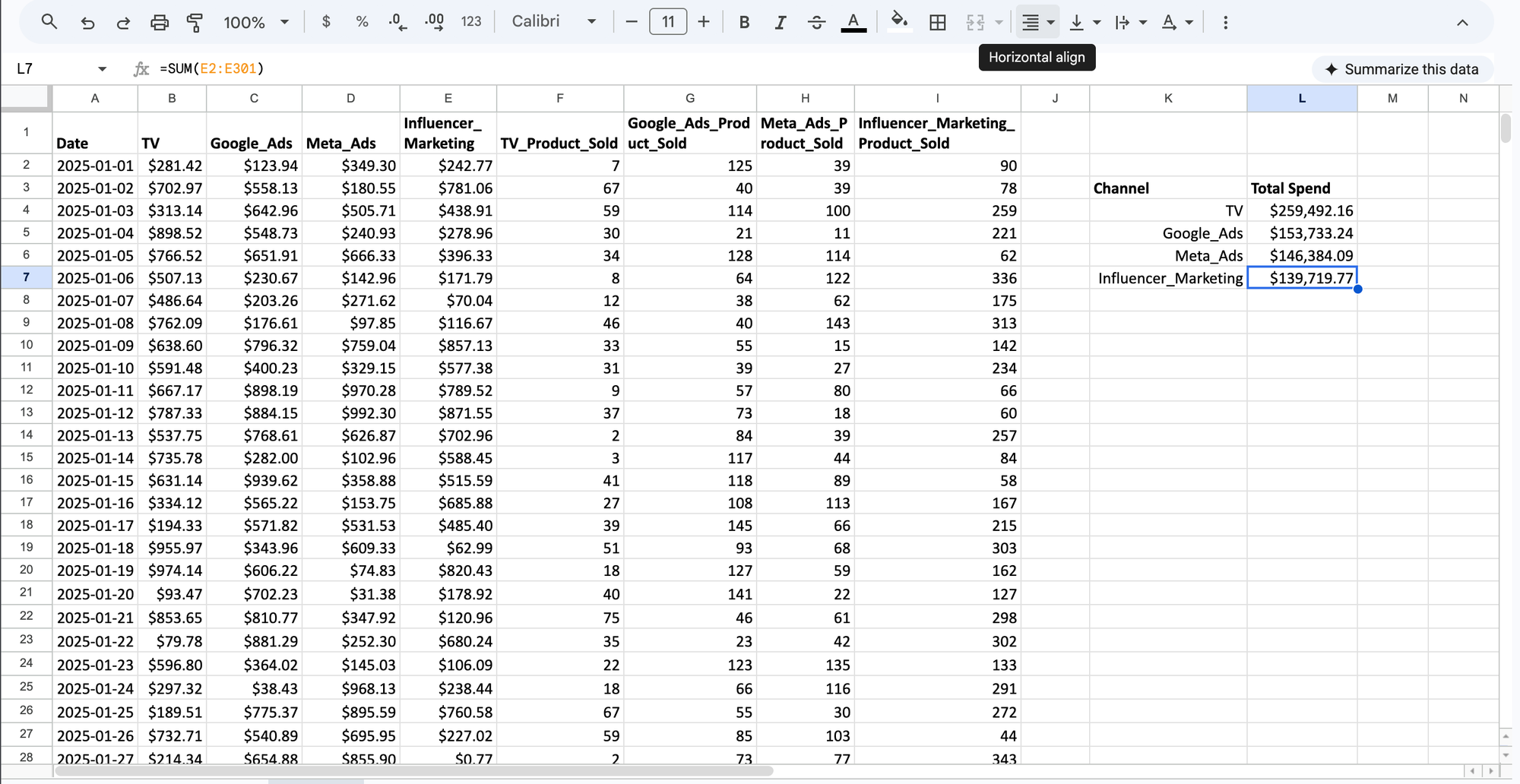
First, let's see how much we spent on each channel using =SUM().
Put these channel names in cells K4 through K7:
- TV
- Google_Ads
- Meta_ads
- Influencer_Marketing
Add header titles:
- “Channel” in K3
- “Total Spend” in L3
- “%” → M3
The SUM formula
Two ways to do this:
- The long way: add cells one by one using plus signs → =SUM(B2+B3+B4...)
- The smart way: select the whole range at once → =SUM(B2:B301)
Try both. Same result, less typing. The second tells Sheets to add everything from B2 to B301.
Put these formulas next to each channel:
- Total TV Spend → =SUM(B2:B301)
- Total Google_Ads Spend → =SUM(C2:C301)
- Total Meta_ads Spend → =SUM(D2:D301)
- Total Influencer_Marketing Spend → =SUM(E2:E301)
Each formula points to a different column (B, C, D, E) because each channel has its own column.
Add percentages for context
Raw numbers need context. Divide each channel's spend by total spend:
- TV Spend % → =L4/SUM($L$4:$L$7)
- Google_Ads % → =L5/SUM($L$4:$L$7)
- Meta_Ads % → =L6/SUM($L$4:$L$7)
- Influencer_Marketing % → =L7/SUM($L$4:$L$7)
Let's break down what's happening in these formulas:
- L4 (or L5, L6, L7) is the total spend for that channel
- SUM($L$4:$L$7) adds up ALL channel spending
Why the $ signs?
$ signs in the formulas are like pins on a map. They keep parts of your formula fixed when you copy it elsewhere. So, when you copy the formula to other cells, Spreadsheets will know what parts to keep untouched and to change. Use the shortcut - press F4 (or fn + F4 on Mac) when your cursor is on the cell reference. Each press cycles through different $ combinations. You can lock rows, columns, or both.
Try copying the formula without $ signs and watch it fall apart.
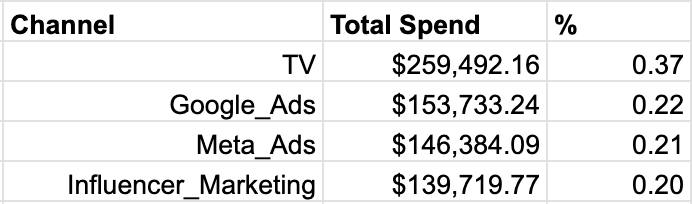
Now format M4:M7 as percentages - select the cells and click the % symbol in the toolbar.
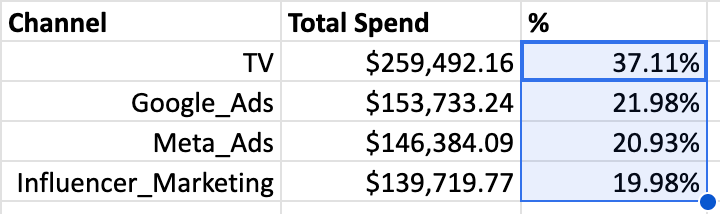
Result: TV takes the biggest slice at 37.11%. Influencer marketing uses the smallest at 19.98%.
Finding insights is only half the job. You also need to make them visible and easy to understand to others.
Make it visual
1. Hold CTRL (or command on Mac) and select K3:K7 and M3:M7 ranges.
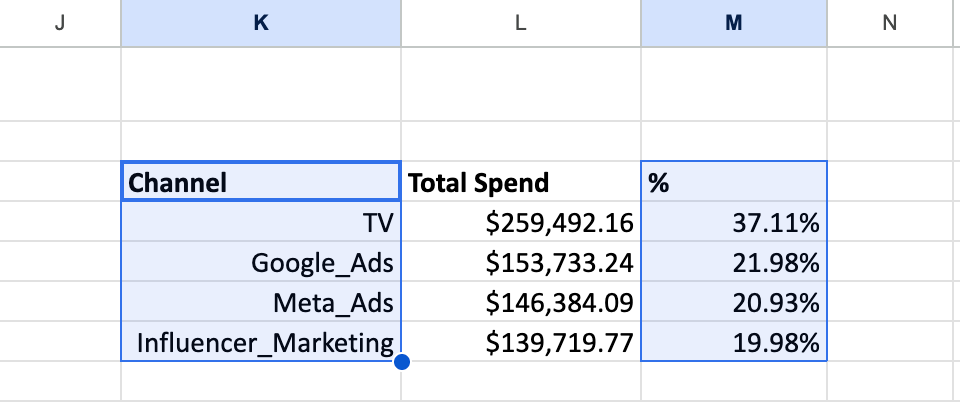
2. Click "Insert" in the top menu, then "Chart"
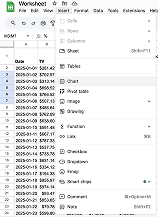
3. In the Chart Editor panel, switch to "Pie Chart" under Chart type
4. Add the title "Ad Spend by Channel"
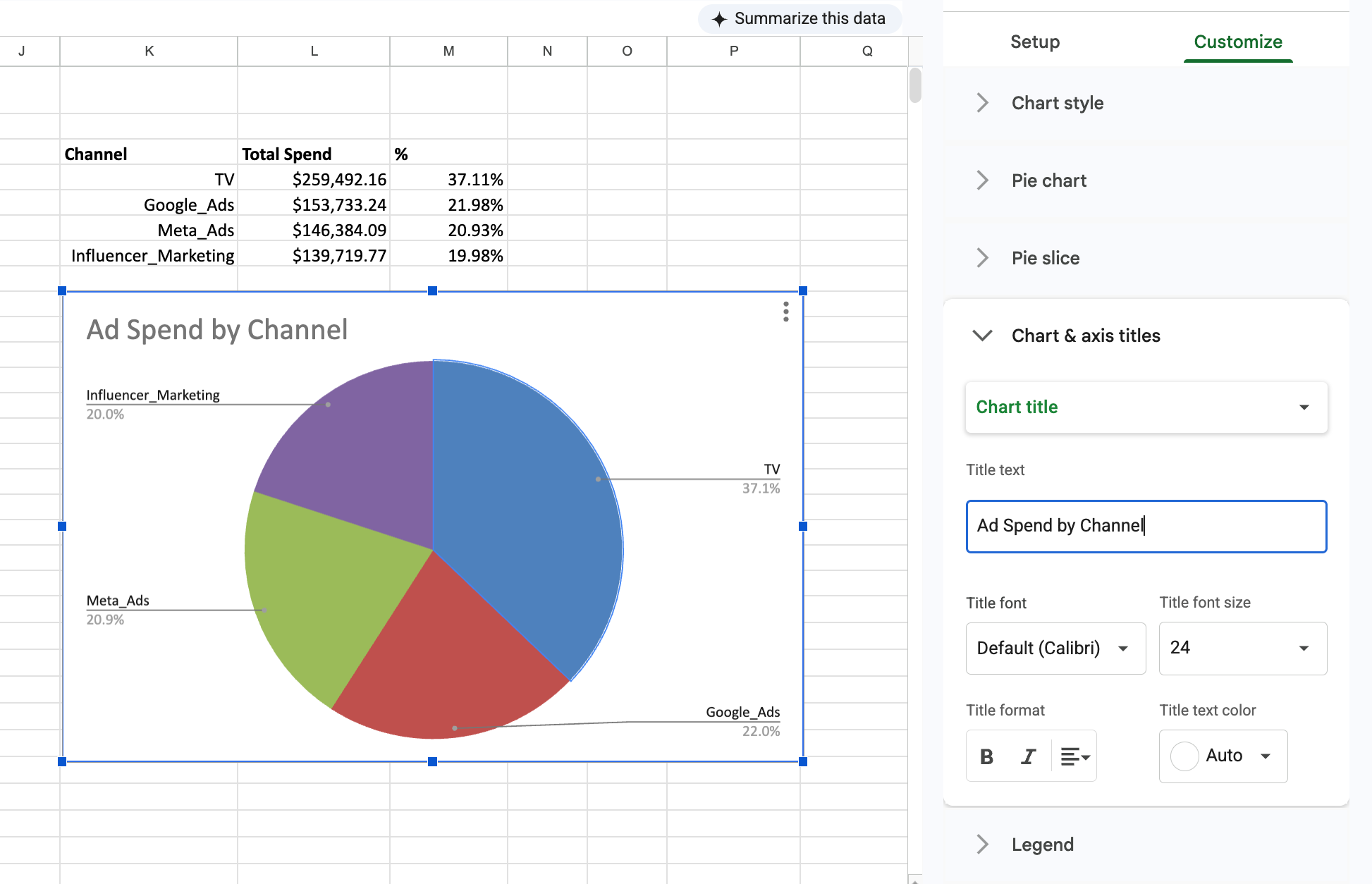
Same data, but now anyone in the room gets it instantly.
Which Marketing Channels Make Money?
Tracking spending is good. Knowing if it makes money is better.
Time to calculate Return on Ad Spend (ROAS). Simple question: how much do we make for every dollar spent?
Add "ROAS" to cell N3. The formula:
- Revenue = products sold × average price
- ROAS = revenue / ad spend
For TV, the formula looks like this → =(SUM(F2:F301)*15)/L4.
Breaking it down:
- SUM(F2:F301) adds all products sold through TV
- Multiply by 15 (our average price) to get revenue
- Divide by L4 (our TV ad spend from earlier)
Do the same for all channels:
- TV → =(SUM(F2:F301)*15)/L4
- Google_Ads → =(SUM(G2:G301)*15)/L5
- Meta_Ads → =(SUM(H2:H301)*15)/L6
- Influencer_Marketing → =(SUM(I2:I301)*15)/L7
Format N4:N7 as currency.
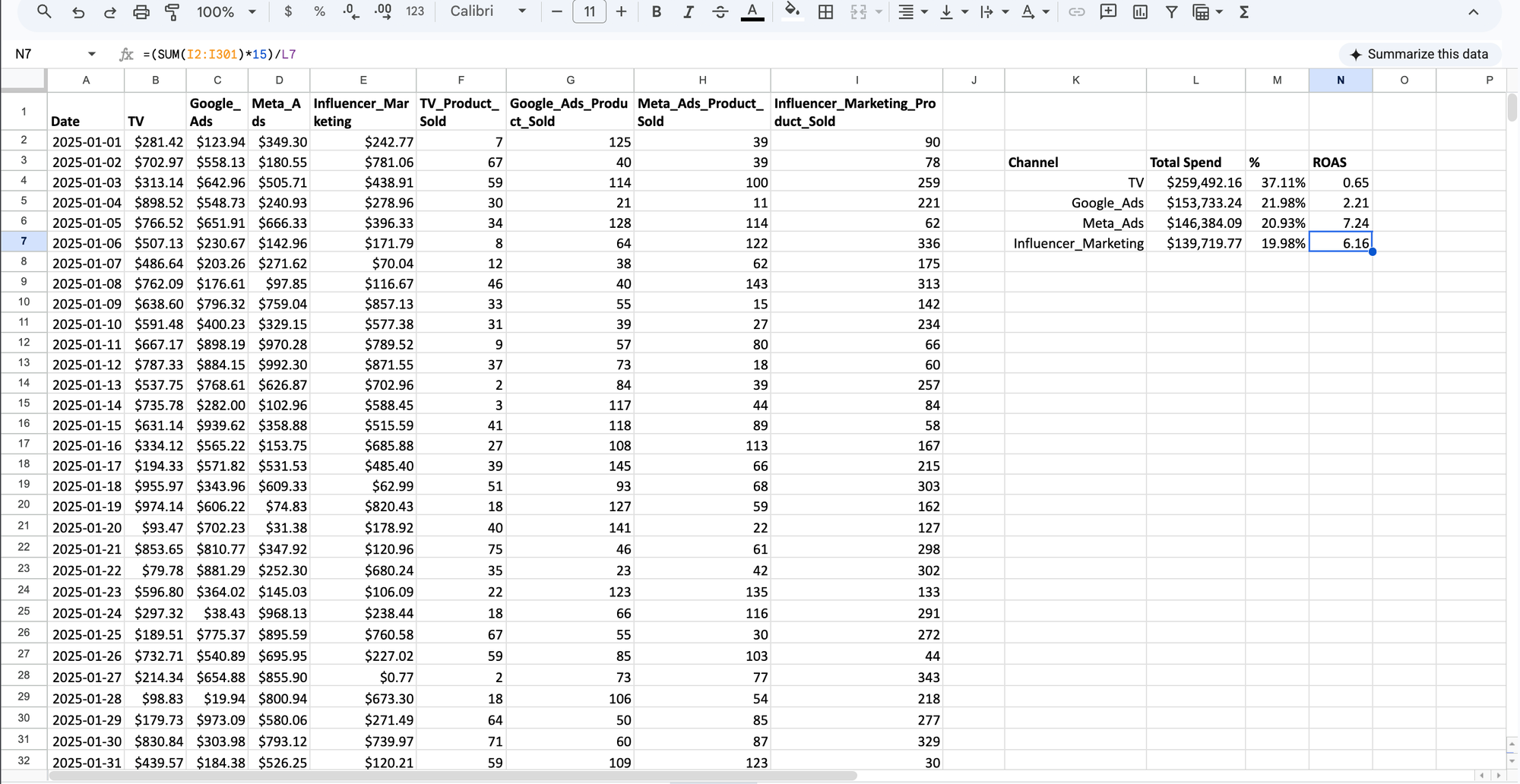
"Nick, what do these numbers mean?"
Every $1 into Meta ads returns $7.24. That's $6.24 profit before other expenses.
TV? Different story. Every dollar spent loses 35 cents.
Are these numbers good? Depends on your industry and margins. But three out of four channels are profitable.
Make winners and losers obvious
Use conditional formatting - a highlighter that colors data based on rules you set.
- Select N4:N7
- Click "Format" → "Conditional formatting"
- Set these rules:
- Value greater than 1 → green (making money)
- Value less than or equal to 1 → red (losing money)
- Hit "Done"
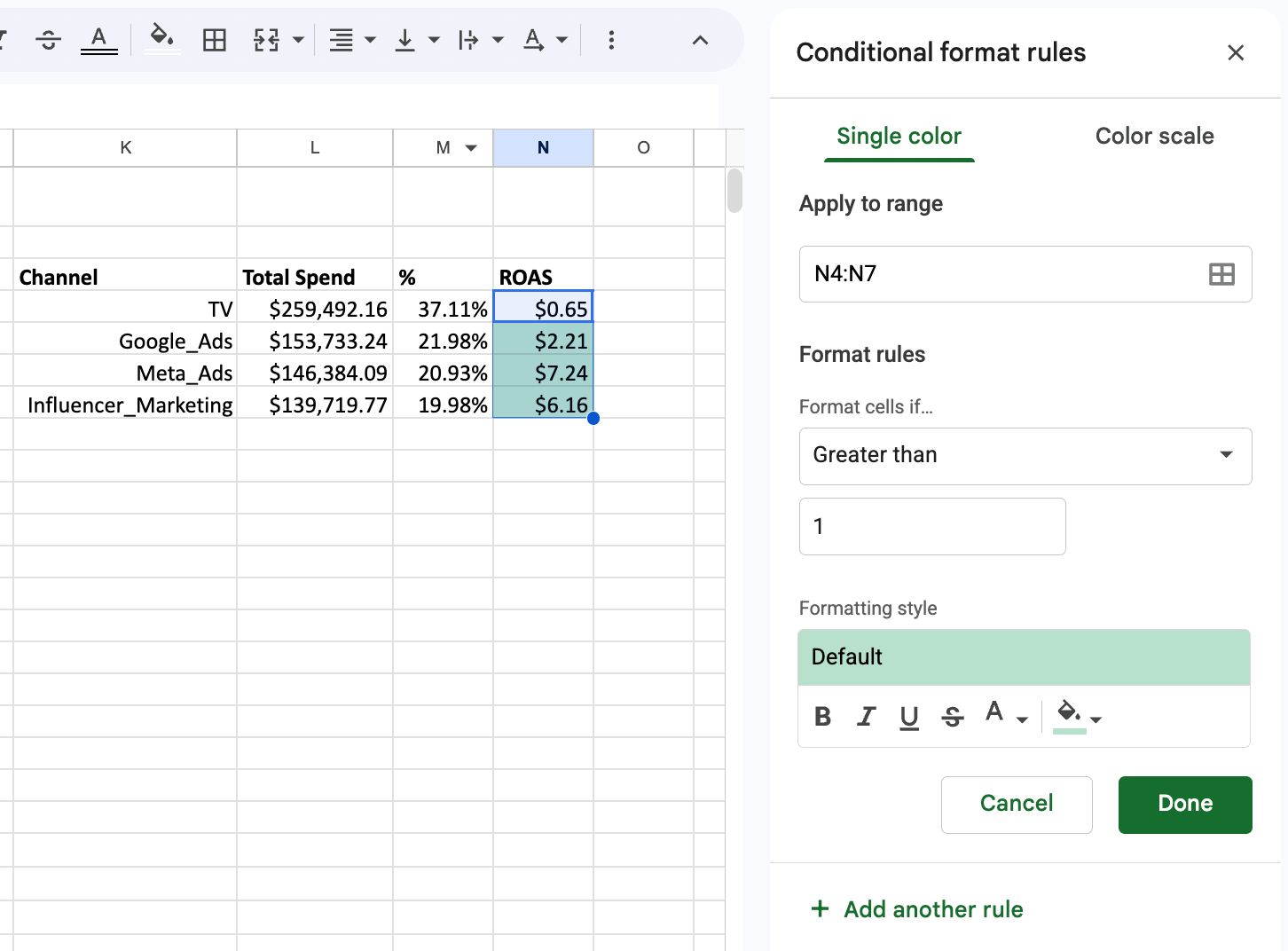
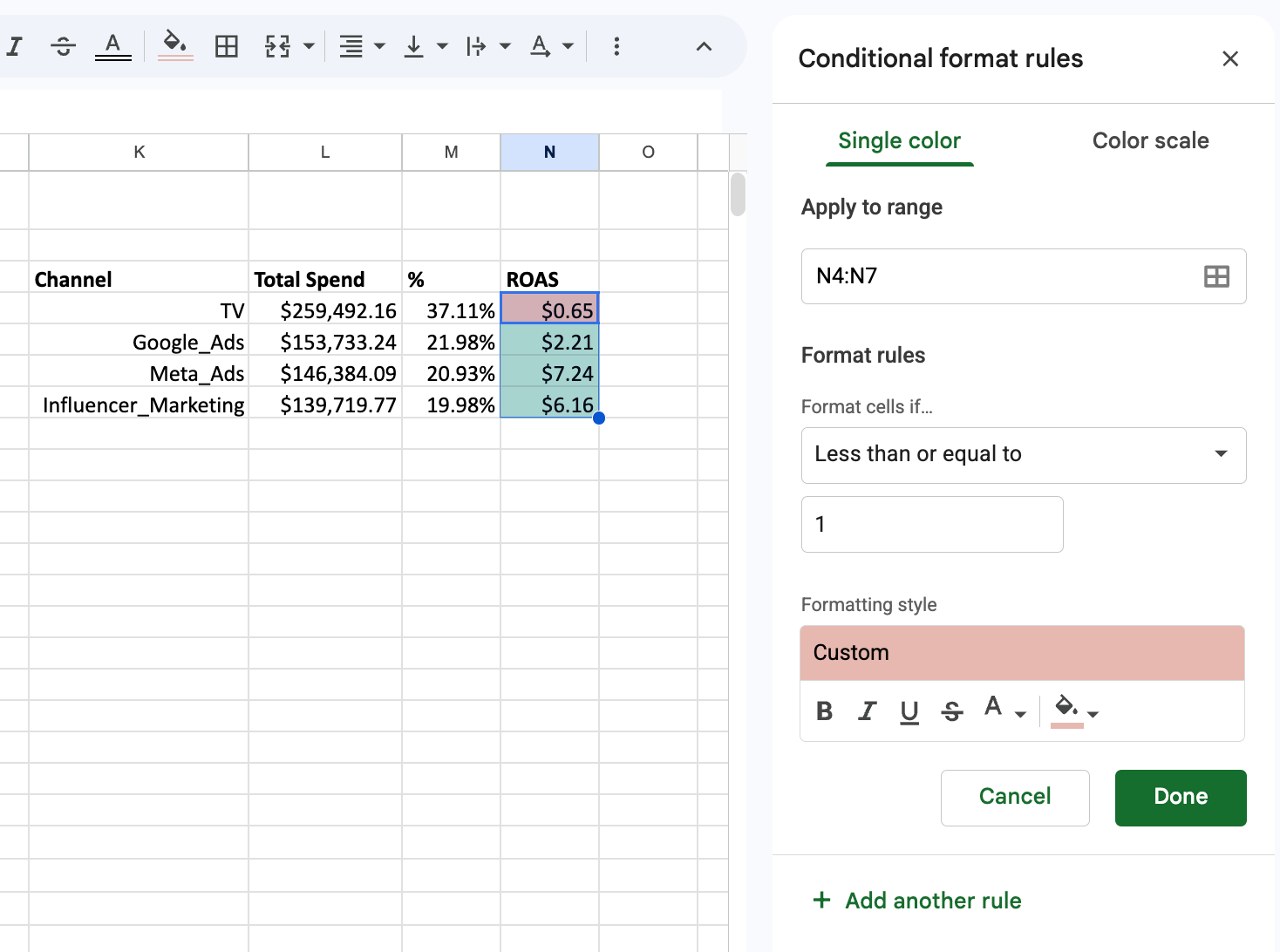
Now your boss can spot profitable channels instantly. But hold on - there's another question we need to answer.
How much does each sale cost us?
Let's talk about Cost Per Sale (CPS). Cost Per Sale (CPS) tells us exactly what we spend to get one customer. Lower is better.
$1000 on ads, 100 sales = $10 CPS.
Add "CPS" in cell O3. Formula: Total spend / Number of sales.
Apply to all channels:
- TV → =L4/SUM(F2:F301)
- Google_Ads → =L5/SUM(G2:G301)
- Meta_Ads → =L6/SUM(H2:H301)
- Influencer_Marketing → =L7/SUM(I2:I301)
Let’s apply conditional formatting again:
- If the value ≤ 5, turn green (great!)
- If the value is between 5 and 15, turn yellow (okay)
- If value ≥ 15, turn red (help…)
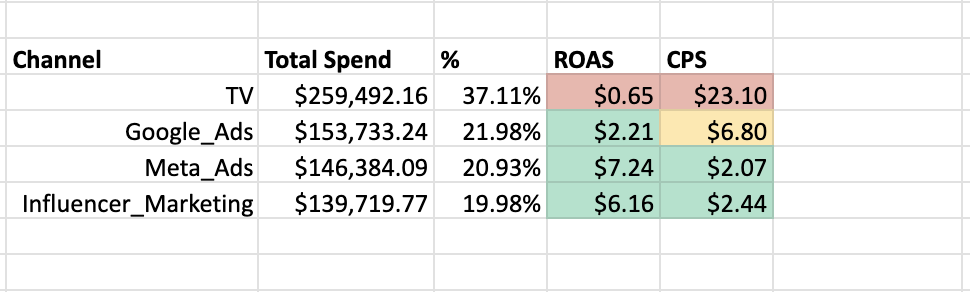
Something jumps out: Meta ads and influencer marketing are our most efficient channels, yet they get the smallest budget. We're spending the least on what works best.
What are our key spending statistics per channel?
Now that we know which channels are crushing and which need work, let's dig deeper into our spending patterns. They'll show us what "normal" looks like for each channel.
Set up these columns:
- “Average_Spend” in P3 cell
- “Median_Spend” in Q3 cell
- “Max_Spend” in R3 cell
- “Min_Spend” in S3 cell
Start with averages using =AVERAGE(range):
- TV → =AVERAGE(B2:B301)
- Google_Ads → =AVERAGE(C2:C301)
- Meta_Ads → =AVERAGE(D2:D301)
- Influencer_Marketing → =AVERAGE(E2:E301)
TV spends $864.97 per day. Influencer Marketing runs lean at $465.73 but still delivers solid returns.
But averages can lie. If you and Jeff Bezos are in a room, the average net worth is billions. Median gives us the middle value, ignoring outliers.
Let's add it:
- TV → =MEDIAN(B2:B301)
- Google_Ads → =MEDIAN(C2:C301)
- Meta_Ads → =MEDIAN(D2:D301)
- Influencer_Marketing → =MEDIAN(E2:E301)
TV's median is $868, almost the same as its $865 average. That's good news: no handful of extreme days is distorting the picture, so here the average tells the truth. Always check both. When they're far apart, trust the median.
Find the range with MAX and MIN:
- Max
- TV → =MAX(B2:B301)
- Google_Ads → =MAX(C2:C301)
- Meta_Ads → =MAX(D2:D301)
- Influencer_Marketing → =MAX(E2:E301)
- Min
- TV → =MIN(B2:B301)
- Google_Ads → =MIN(C2:C301)
- Meta_Ads → =MIN(D2:D301)
- Influencer_Marketing → =MIN(E2:E301)

Here's a trick to flag high and low spending days. Add a column next to TV called "TV_Daily_Spend." Right-click column C, choose "Insert 1 column left." (TV stays in column B, and the new empty column C sits right next to it.)
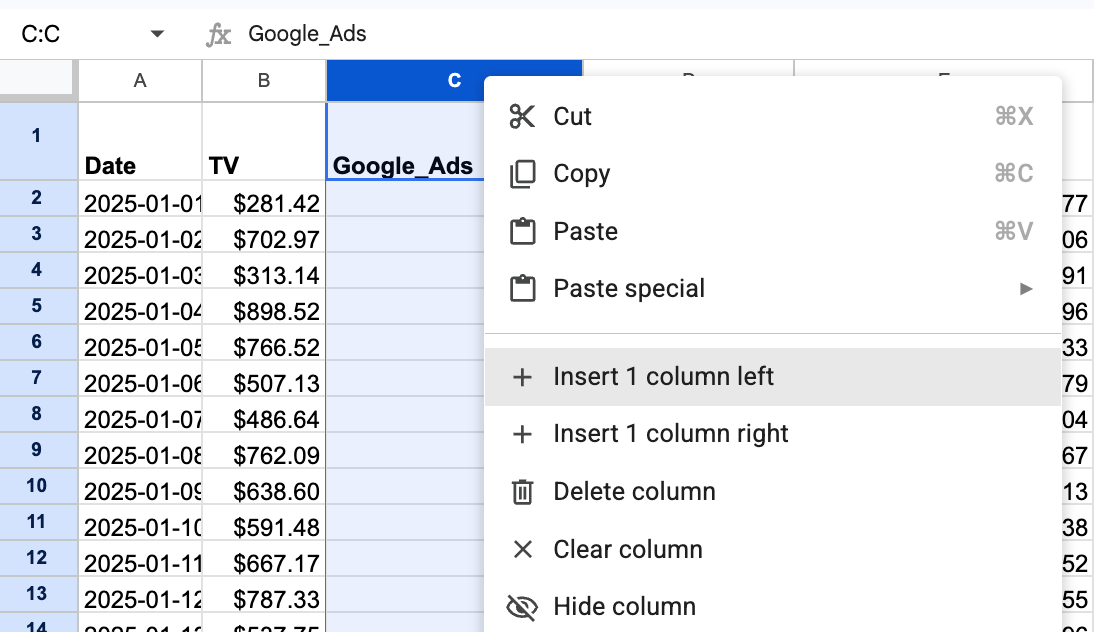
In cell C2, use: =IF(B2>$R$4, "Above Median", "Below Median"). Drag it down to cover all rows.
This IF formula makes Spreadsheets think like a human. It says: "If today's spend is higher than our median, label it 'Above Median.' Otherwise, call it 'Below Median.'"
How this works:
- IF() checks a condition and returns different results based on true/false
- Structure: =IF(what to check, result if true, result if false)
- We're checking if each day's spend (B2) exceeds our median ($R$4)
- The $ signs keep the median reference fixed when copying
Before we wrap up this module, let's summarize what we found:
Insights:
- Meta Ads is the star: $7.24 return per dollar with only our third-largest budget
- Influencer Marketing is undervalued: second-best returns, smallest budget
- TV eats most of our money but returns only 65 cents per dollar
What should we do next?
- Shift some TV budget to Meta and Influencer Marketing
- Investigate those expensive TV days - are they justified?
- Increase Meta budget in 10% increments, watch ROAS, find the sweet spot before returns drop
Remember, sometimes the best insights come from simple analysis. You don't need fancy tools to spot opportunities. Just clean data, clear thinking, and the right questions.
This wraps up the first module. You've already learned how to turn raw numbers into actionable insights. Not bad for a day's work, right? Great Job!
Next Up: Which Campaigns Are Broken?
Your boss is happy. You found the best channel. Then comes the next question:
"OK, Meta works. But which of our 300+ campaigns are broken?"
Checking them one by one would take all day. In Module 2, you'll write one formula that checks every campaign's clicks, leads and orders, then labels each one Healthy, Needs Optimization, or Critical. Colored, so problems jump out:
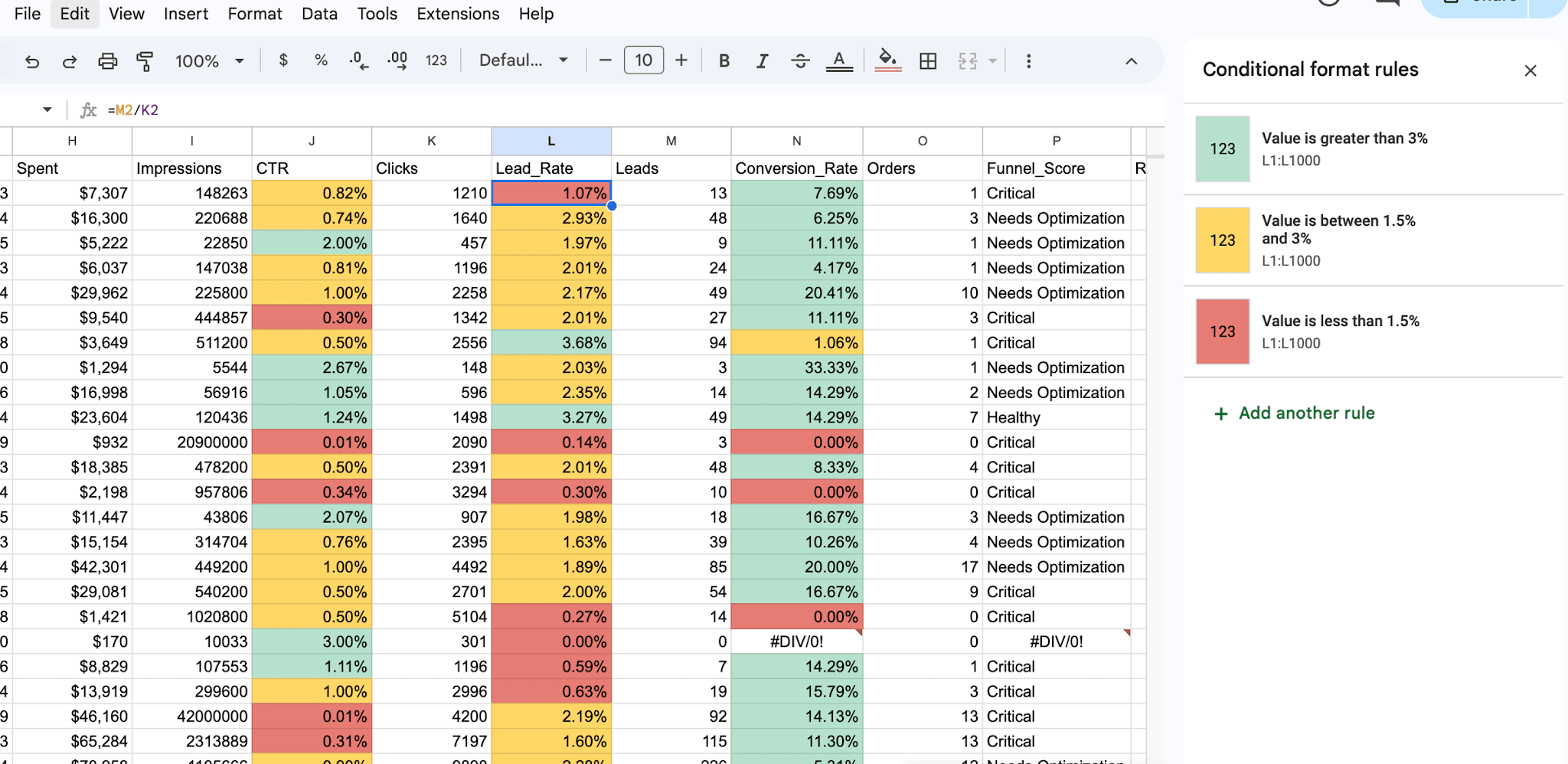
You'll also clean messy campaign names in seconds, find which campaign types actually make money, and check whether retargeting pays off.
If you have any questions, email me at nick@marketermetrics.com. I answer every email :)
See you in module two.
Want to fix those broken campaigns?
Modules 2–4 take you from here to formulas, pivot tables and charts your boss understands in 10 seconds. Same real marketing data, same step-by-step style.
- All 4 modules + practice datasets + solutions sheet
- Certificate when you finish
- 14-day money-back guarantee, no questions asked
Already a student? Continue to Module 2 →